
 Buy. Download. Create. Get Photoshop now at the Adobe Store.
Get Flash, Dreamweaver, Photoshop Extended with Adobe Web Premium.

 The Photoshop Blog offers the latest Photoshop news and software updates, Photoshop tips and tutorials, and random thoughts from graphic artist and Photoshop expert Jennifer Apple.
THURSDAY - AUGUST 31 2006

 From Jan Kabili's Photoshop Online
Simulate a graduated neutral density photo filter
Shooting a scene with lots of sky often results in a photo with a dark foreground. If you carry a graduated neutral density lens filter in your camera bag, you can use it in the field to even out exposure. But if you don’t have that filter, or you forget to put it on your camera, no worries. You can simulate the effect of a graduated neutral density filter in Photoshop with a black to white gradient on an adjustment layer.
From Nicolas Noben
Photoshop tutorial - Post processing: Overburn
A simple photoshop tutorial for the post-processing of photographs.
Photoshop tutorial - Post processing: Digital to fake Black & White Film
Simply desaturating a photograph doesn’t really represent a true black & white film photo. The film has more impact, more puch and more life. A digital photo converted to black & white just doesn’t cut it, it doesn’t look real.
Photoshop tutorial - Post processing: Toning black and white images
This post-processing tutorial shows how to tone black and white images to give them an art approach. It can turn a rather boring image into something interesting.
Photoshop tutorial - Post processing: Make dramatic skies
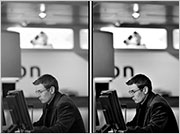 This Photoshop post-processing technique shows how to make dramatic skies, similar to having a circular polarizer filter on the camera. This simply darkens the sky to better reveal your clouds.
Photoshop tutorial - Post processing: Get Vibrant colors without increasing contrast
This post-processing technique shows how to transform a dull looking photo coming out of a digital camera and get the vibrant colours it should have. Most cameras, even pro’s models, under achieve the colours giving the maximum possibilities for post-processing. With this simple technique, we’re using Lab colors to increase saturation on all colors but not increasing edges contrast.
From ComputerArts (Via Heathrowe)
Colour Replacement Techniques
For those occasions when you need to swap one colour for another, Photoshop provides a couple of tools that are an absolute necessity.
 From Boing Boing
Chinese Space Program Propaganda
I love a little propaganda in the morning. No really. Sometimes I feel like I couldn't get out of bed without it. Especially when said propaganda involves PANDAS IN SPACE.
From PhotoshopNews
Project: Photoshop and Lightroom
Adobe today announced that the U.S. leg of its Project: Photoshop and Lightroom education road show will begin on September 5 at over 25 colleges and art schools across the nation.
 As always, a special Batgirl thank you to James Jean
posted by Jennifer Apple | permalink | send comments
Photoshop Finishing Touches From Dave Cross
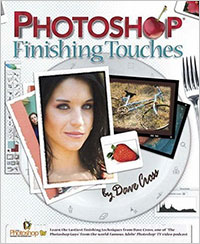 Photoshop users will find this new book on finishing touches practical, valuable and inspiring. From the pen of Photoshop expert Dave Cross (one of the Photoshop TV Guys) comes the new easy-to-use Photoshop Finishing Touches, which offers creative solutions for those of us searching for ways to add that last subtle or dramatic effect to images.
Cross encourages experimentation, with quick tips on innovating and customizing tools and techniques, like creative cropping, PDF presentation, dramatic lighting, selective blurring and storybook layouts.
Photoshop Finishing Touches’ chapters focus in on border effects, color and artistic effects, presentation, sharpening and printing.
The book’s layout is stylish and above all, easy to work from. Simply refer to your subject and glance toward the paragraphs on the right and the images on the left. Cross' own enchanting photographs are used to illustrate techniques, and his passion for design illuminates the learning process.
You can learn more about the book by visiting the Finishing Touches website. There's lots to discover there. Also have a look at the Dave Cross Blog, and if you want to try before you buy there's a sample chapter of the book, Making Your Own Brushes, available online.
Photoshop Finishing Touches is available at Amazon.com for $26.39 (34% discount)
posted by Jennifer Apple | permalink | send comments
WEDNESDAY - AUGUST 30 2006
Watch out — I'm going to start doing this on a daily basis!
From John Nack
Pimp My Wildlife, Photoshop-style
Heh--no real attributions to the artist(s) are provided, but these animal mash-ups are quite well done.
Mojizu: Social networking through character design
Like Japanese-style character design? You'll be among kindred spirits at Mojizu, a site devoted to creating, sharing, and discussing little creations ("Mojis").
Vector Vixens, Belgian Béziers
What is it with Illustrator artists and scantily clad pinups? Paul Bush creates amazingly realistic portraits of women. To give others guidance, he goes into some depth in his gradient mesh tutorial.
From PhotoshopNews
Free Pass to the Photoshop World Tech Expo
If you are interested in mingling with the biggest names in the industry and seeing the latest in Photoshop-related technology, sign up for a free Tech Expo pass (valued at $20 per person).
From Photoshop TV
Photoshop TV Episode 45
Scott has a tutorial on making the most of your product shots with lighting effects, highlights. Matt has a long-distance tutorial for enhancing a sunset with a Gradient Map adjustment layer. Dave shows you how to eliminate shadows with the Color Range tool, Hue/Saturation and a custom pattern.
 From Planet Photoshop
Over the Border
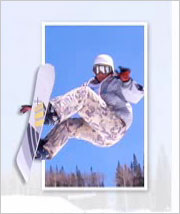
Matt Kloskowski shows how to make a photo pop out of its border.
Using Guides
In this video tutorial, Dave Cross shares some quick tips for using “guides” in Photoshop.
Create a Slideshow in Bridge
Scott Kelby shows how to create a slideshow of selected images using Bridge.
From Layers Magazine
Color Correcting Images
In this video tutorial Dave Cross shows how to use Photoshop to color correct photos "by the numbers."
From Matt Kloskowski's Photoshop Killer Tips
Saving Your Own Layer Style
Learn how to make layer styles work for you by saving your own.
 Smart Guides to the Rescue
Align in a smarter way with smart guides.
From Graphics.com
Free Photoshop Plugins, Part 4: Xero Plugins
Harald Heim's latest look at free Photoshop plugins that are worth the download.
Pixel Artist Profile: eBoy
The eBoy group establishes a role for pixel art beyond the small screen.
As always, a special Batgirl thank you to James Jean
posted by Jennifer Apple | permalink | send comments

TUESDAY - AUGUST 29 2006
New Photoshop Brush Set 'Splatters/Strokes' From Kirsty
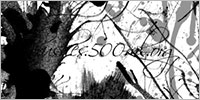 Kirsty sends this in: "There's a new brushset with a paint splatters/strokes theme, please check it out at the usual address of 500ml Brushes. Thanks!"
The Splatters/Strokes set contains 11 large brushes of different kinds of paint splatters and strokes, based on fantastic stock from sxc.hu.
For more brushes, see our Photoshop Brushes Page.
posted by Jennifer Apple | permalink | send comments
Adobe To Preview Upcoming Photoshop Technology
Adobe has used the opening keynote at Photoshop World as a platform for showcasing new and emerging Photoshop technologies, and this year's conference is no exception. John Loiacono, senior vice president of Adobe’s Creative Solutions Business, will take the stage on the morning of September 7.
 During his presentation, Loiacono will give a sneak peek at some of the new Photoshop technology being developed by Adobe. Loiacono has responsibility for the development, delivery and marketing of Adobe's entire creative software portfolio.
"It's always thrilling when Adobe gives our attendees a glimpse of what's to come," said NAPP President Scott Kelby. "It's one of the highlights of the conference, and really an exciting way to kick off this year's ground-breaking event."
Photoshop World Conference registration is available by calling 800-738-8513 Monday-Friday, 8:30 AM to 7:00 PM EST, or online at the Photoshop World website.
posted by Jennifer Apple | permalink | send comments
Canon's New EOS Digital Rebel XTi SLR Raises Resolution, Lowers Cost And Leaves Other SLRS In The Dust
(Canon Digital Rebel XTi 10.1MP Digital SLR Camera with EF-S 18-55mm f/3.5-5.6 Lens — available at Amazon.com for 899.99)
Canon’s EOS Digital Rebel XT model – the camera that set all time sales records for digital SLRs of any persuasion (supplanting the original Digital Rebel’s claim to that title) – now takes its place alongside of the newest member of the irrepressible Rebel clan: the 10.1 megapixel EOS Digital Rebel XTi SLR camera.
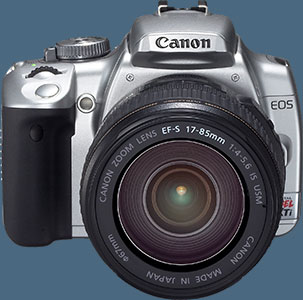 In stores mid-September, the EOS Digital Rebel XTi camera is offered in both sleek brushed silver patina and “pro” matte black finishes. It is available in two kit configurations: with and without Canon’s high quality EF-S 18-55 mm f/3.5-5.6 zoom lens. The EOS Digital Rebel XTi camera will be available for an estimated selling price $899* with the zoom lens kit, while the body only kit will carry and estimated selling price of $799*. In order to maintain an appropriate pricing structure, the Digital Rebel XT model will carry an adjusted estimated selling price of $799* with the zoom lens kit and $699* for the body only kit.
The EOS XTi Digital SLR camera now leads the Digital Rebel revolution with such marquee features as its higher 10.1 megapixel resolution; refined and redesigned Canon CMOS sensor; larger, easier to read 2.5 inch display screen (along with simplified and streamlined menu navigation), and the remarkable EOS Integrated Cleaning System, a self-cleaning image sensor unit/dust removal system that is available on no other camera of any make, at any price.
Despite the addition of these and other imaging improvements – including Canon’s fast, high-precision 9-point autofocus system and a new maximum burst rate in large/fine and raw quality modes that – at three frames per second – is double the capability of the Digital Rebel XT SLR, The EOS Digital Rebel XTi SLR makes its debut at a price point that is $100 less than its top-selling sibling was at its introduction and hundreds of dollars less than other SLR cameras and camera kits in its class.
Read The Full Press Release
Canon Digital Rebel XTi 10.1MP Digital SLR Camera with EF-S 18-55mm f/3.5-5.6 Lens — available at Amazon.com for 899.99
posted by Jennifer Apple | permalink | send comments
FRIDAY - AUGUST 25 2006
 Here's my latest collection of Photoshop goodies, featuring a big bunch of tutorials from Graphics.com and Layers Magazine.
From Graphics.com
Creating Type Effects With Clipping Masks in Photoshop
Karen Wheeler combines clipping masks with the Displace filter to create a classic text effect.
Reducing Image Noise Three Ways in Photoshop
Shan Canfield shows that there are alternatives to third-party plugins when reducing noise.
Introduction to RAW Files or Digital Negatives
Uwe Steinmueller and Jürgen Gulbins make the case for a RAW-based digital photo workflow.
Enhancing a Photo With Photoshop's Solarize Filter
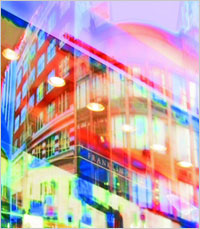
Teresa Lunt enhances the color and intensifies the reflections of an architectural photo.
 Using Photoshop’s Reduce Noise Filter
Mikkel Aaland finds this filter often produces better results than those achievable with Photoshop's Camera Raw controls.
Three Quick Ways to Enhance Images in Photoshop
Rick Sammons shows that complex techniques aren't always required to improve image quality.
Simulating Camera Accidents in Photoshop
Tim Ashton digitally simulates traditional camera accidents to achieve a surreal mood for a self-promotion.
Paint With Filters Using the History Brush in Photoshop
Karen L. Wheeler provides a technique that rewards close attention to the History palette.
From Layers Magazine
Color Correcting Images
In this video tutorial, Dave Cross shows how to use Adobe Photoshop to color correct photos "by the numbers."
 Custom Contact Sheets
Dave Cross shows how to use the Adobe Bridge and InDesign to make custom contact sheets.
Creating Border Effects
Dave Cross shows how to combine Illustrator and Photoshop to create a border effect.
Play That Funky Music
Felix Nelson shows how to make an "old style" record using Photoshop.
Undo Part of an Action
Matt Kloskowski shows how to add a one-click undo to an action in Adobe Photoshop.
Create a Portrait Background
Scott Kelby shows how to create a realistic looking background for your portrait style photographs.
Using Smart Objects
Matt Kloskowski shows how to use Smart Objects in Photoshop CS2 with Illustrator to make your life easier.
From Jan Kabili's Photoshop Online
Compositing With Layer Masks
Combine multiple photographs into a composite image using layer masks. You'll learn how to size photos to match using Free Transform, how to flip a photo, and how to use layer masks to blend multiple photos into one realistic looking composite.
 Auto Select Layers
The Auto Select Layer feature in Photoshop comes in handy when you have lots of layers, but watch out for some gotcha's when you use this feature. Learn all about Auto Select Layer in this episode.
Copy A Layer Mask Between Layers
Did you know you can copy a layer mask between layers? Learn how to use this technique to limit the area affected by multiple adjustment layers.
From CreativeBits
Color Codes Matching Chart HTML (Pantone, CMYK, RGB Hex)
(Submitted by Ivan) I always needed this!
Group Your Layers To Get Organized
(Submitted by Ivan) When I work in Photoshop I quickly end up having dozens of layers. It's good to keep every possible thing on it's on layer, but at the same time it becomes increasingly difficult to navigate them. Thankfully Photoshop allows us to group our layers into layer folders.
From Heathrowe
Custom Metadata in Bridge
Gunar Penikis details how to extend the custom file info panel definition - thus allowing custom metadata fields in Bridge.
Get Bryce 5 Free
I just spotted this nice giveaway from creativepro. This DAZ special offer is available only at Download.com and will absolutely end on September 6, 2006! So don't delay in picking up this gift of one of the finest landscaping and animation software applications available anywhere.
PanosFX 'Embossed Label' Actions
 These actions simulate realistically the popular look of an embossed label tape. Just type in your text and let Photoshop punch the letters on the tape. You can choose from three tape colors (R-G-B).
Free One Day Tech Expo Pass
The Photoshop World Tech Expo is open to the public one day only on Friday, Sept. 8 from 10:00 AM to 5:00 PM at the Mandalay Bay Convention Center in Las Vegas. If you are interested in mingling with the biggest names in the industry and seeing the latest in Photoshop-related technology, sign up for a free Tech Expo pass (valued at $20 per person).
posted by Jennifer Apple | permalink | send comments
THURSDAY - AUGUST 24 2006
Trevor Morris Photoshop Scripts Updated
 There are some new script updates at Trevor Morris' site. First this one: "An updated beta (version 0.3.7) of my new Black & White Variations script is available. The script has a full user interface, and allows you to convert an image to black-and-white using various methods (currently 20 different methods, but more can be added). It's handy for comparing results, and for combining multiple black-and-white images into a single composite. The script should also work on both Mac and PC."
Also look for some other updated Photoshop scripts from Trevor. Here's the scoop: "'I've posted a bunch of new and updated scripts..."
- Black & White Variations - converts and saves an image to black and white using various methods (currently 20 different methods, but more can be added)
- Hide All Layers - set the visibility of all layers to off (invisible)
- Show All Layers - set the visibility of all layers to on (visible)
- Search For Layers - searches for layers by name and selects the first match
- Sort Layers - sorts all layers in the active document alphanumerically (from top to bottom)
You'll find links to the downloads at Trevor's excellent Photoshop site — GFX^TM.
For more on Photoshop Scripts, see my Photoshop Scripts Tutorial.
posted by Jennifer Apple | permalink | send comments
Photoshop 9.0.2 Update For Windows Now Available — Mac Update Due Very Soon
 I just discovered this on John Nack's blog: "The Photoshop 9.0.2 update for Windows is available on Adobe.com. It fixes a handful of irritating issues that weren't caught for the 9.0.1 update:
- Menus now respond correctly after a single click.
- Undo/Redo work properly when multiple documents are open.
- Photoshop no longer produces a program error when encountering unsupported file types through the Acrobat Touchup workflow.
- Supported files that incorrectly produced an "unsupported color space" message now open as expected.
- TIFF files with layer data greater than 2GB now open correctly.
If you haven't updated Photoshop CS2 with the previous 9.0.1 update, no worries: 9.0.2 contains those fixes as well."
Visit John's blog to read more on the Mac version and certain issues that were discovered.
posted by Jennifer Apple | permalink | send comments
Filter Forge Beta Updated With New Features
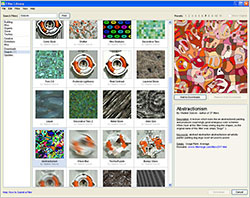 Filter Forge has released the first major update to the beta version of Filter Forge, a Photoshop plugin that allows users to create their own filters in a visual node-based editor. The update fixes a number of problems, adds new features and significantly improves the rendering speed.
Due to extensive optimizations, Filter Forge's rendering is now considerably faster (up to 3.8 times faster for certain filters). New features include zoomable workspace in the Filter Editor, unlimited number of filter controls and the ability to customize their order, smaller proxy previews for large images, and the ability to create new images from scratch.
There are also four new blending modes for the Blend component, new components to extract minimum/maximum levels and average color from the source image, a new component for creating frame effects, new components to work with the CIE L*a*b* color model, and the ability to load and save PNG files.
The Filter Forge site has a complete list of updates, additions and fixes.
First publicly released in May 2006, Filter Forge is a high-end plugin for Photoshop allowing computer artists to build their own filters, seamless textures, visual effects, distortions, patterns, backgrounds, frames and more.
The key features of Filter Forge include a visual node-based editor and a free online library of user-created filters to which anyone can contribute. Filter Forge is currently in the public beta testing stage, the final version is planned for release this fall. For more information visit the Filter Forge site.
posted by Jennifer Apple | permalink | send comments
Photoshop Tip: Bigger Font Previews
 In Photoshop CS2, Adobe added font previews (where you can see a preview of how each font looks, right in the Font menu itself), but the previews are so small, it's still hard to tell the difference among fonts.
Luckily, there is a way to make those previews large enough so they actually are usable — just press Command-K (PC: Control-K) to bring up Photoshop's Preferences, then press Command-9 (PC: Control-9) to jump to the Type preferences. In the Font Preview Size pop-up menu, choose Large, and now your font previews will be significantly larger.
reprinted by permission and sponsored by the NAPP
posted by Jennifer Apple | permalink | send comments
WEDNESDAY - AUGUST 23 2006
Interview With Scott Gaidano, President of DriveSavers — On Digital Photo Backup And Digital Photo Recovery
Just before posting this I was overwhelmed by a superstitious vibe that I was tempting fate by not having backed up for quite a while, and so I carefully backed up everything I own to a small portable hard drive that I carry around with me. And as soon as that was done I got back on the web and encountered an astounding stat at the MacWorld site — that only 4% of Mac users backup regularly. Say it ain't so!
 Today I bring you an interview with the go-to guy when it comes to data recovery. Scott Gaidano is the president of DriveSavers, one of the most respected data recovery companies in the business.
Wanting to keep this interview Photoshop oriented, we asked Scott to talk mostly about digital photo backup and recovery. Also, if you ever need his services, we have a special 10% discount code — and believe me, you'll want to use it, because recovery can get expensive. Mention discount code DS1-32-30 and you'll receive an instant discount on your invoiced recovery fee. Sounds good to me! Ok, on to the interview...
What precautions should photographers take to secure their photos?
Of course, the first rule of thumb for protecting your digital photos, and frankly, any important data, is to back it up! That may seem obvious, but it is surprising how many professional photographers don't do it. We see hundreds of drives and storage devices every month that have failed mechanically or been physically damaged.
I recommend following these steps to protect your digital photos:
Step One: Always download your photos to your computer's hard drive as soon as you can. Note: Some programs allow you to reformat or delete photos from the Flash memory card as you download the pictures. We recommend waiting to delete or reformat the memory card until after the download is complete. There is always a risk of file corruption while downloading.
Step Two: Once the photos are downloaded from the Flash memory card, backup the files immediately! This will guard against data loss, when, not if, your hard drive crashes unexpectedly. You can back up your data using CDs, DVDs, tapes or an external hard drive.
Step Three: Make more than one copy of the backup media and keep a copy offsite in a secure location, perhaps in a safety deposit box.
And when traveling, is there a different setup?
I'd say that when traveling, making backups is critical. So much can go wrong. You could drop a camera, a laptop or an external hard drive.
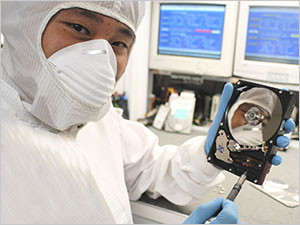 To be prepared, always carry a spare hard drive, CD or other discs to use for backup. Most importantly, when you return home from your trip, backup your laptop or whatever device you've used to download your photos. You can't backup too much.
What are the chances of camera media cards failing?
Because the technology is still evolving, it's probably too early to talk about the estimated lifetime of Flash memory. In most cases, these cards can be used about 1,000 times before they start to wear out.
There are other types of camera cards that rely on miniature hard drives. These are extremely sensitive and can be damaged when dropped.
What are the most common types of failure of these cards?
Most of the camera cards we see have not experienced electrical failure. The problem is typically user error, like accidentally erasing a picture or reformatting the card. We do see cards that have suffered abuse. For instance, we've seen several where dogs have chewed the card into small pieces. Surprisingly, we can still recover data even when the camera card has experienced this kind of physical damage.
What other ways do people destroy their cards?
One thing that seems to happen more frequently than you might think is when a camera card gets left in a shirt or pants pocket going through the washing machine and dryer. The data on the card is then trapped due to static discharge and shorted electronics.
This can be a great challenge in the data recovery process, but I've seen our engineers do incredible things with these camera cards – even performing micro soldering when necessary.
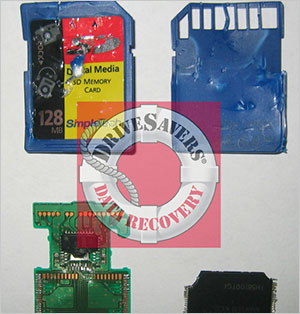 What is the success rate of recovering from the failed cards?
We are successful rescuing data from Flash memory cards roughly 80-90% of the time.
Is the camera to blame in some of these failures?
Anything could be to blame, but as I mentioned, most of the time it is user error or physical damage that we see.
What are the first signs of failure, and what measures should be taken immediately?
An error message from your camera could be an initial sign of a problem. If you are a professional photographer that relies on your camera and its Flash memory frequently, it's probably a good idea to replace your camera card every year or so as a precaution.
What should the person do to help in the recovery?
Do what you can to protect it from (any further) damage and ship it to a professional data recovery company like DriveSavers.
Can you explain the expected life of a typical CD, and when people should make new copies?
As I mentioned earlier, it is very difficult to estimate the life expectancy of technology that has been around for a relatively short period of time. Most CD and DVD manufacturers say their media is capable of lasting at least 100 years. I suppose that transferring the data and making multiple copies will forever haunt computer users whenever new technology is introduced.
Do you also save files from CDs that are corrupted?
Yes we do. Frequently, we see directory corruption that can occur when a disc burning session didn't finish or close properly. We have to image the data to a hard drive and then work on it from there. We also have a high-pressure resurfacing machine that works like magic on scuffs and deep scratches.
Are DVDs the same, better, worse?
Data is written differently to DVDs, but the technology is very similar in that you have a plastic base layer, ink layer and metallic reflective surface. We handle the recovery of DVDs in the same manner as CDs.
Do you recommend certain cards over others?
No. We don't do product testing, so we don't have a sense of the reliability of particular manufacturers.
Do you recommend certain portable hard drives over others?
The only drives we recommend are the ones that work best for your needs and are backed up!
Tell us some of the most amazing recoveries you've done.
We have many stories of photographers losing data, and we've saved everything from official photos of the President to athletes at the Sydney Olympics, to cosmetic surgery photos.
 I remember back in 2000 one of the first digital media recoveries we did was for a woman named Almitra Von Wilcox, who was literally walking around the world and documenting her adventure. She captured over 120 images of China on five 32mb CompactFlash cards. While copying images from one of the CompactFlash cards, something went wrong and she could no longer access the images.
She contacted Kodak and they referred her to DriveSavers. We were able to recover all the lost images. Almitra said that we rescued invaluable images for her because traveling to China was a once in a lifetime opportunity.
Another photographer, the late Amalie Rothschild, lost the only digital copies of photos she took of classic rock performers in the sixties. These included the only photos of a performance by Janis Joplin and Tina Turner singing together onstage.
Amalie was one of Bill Graham's photographers at The Fillmore East in New York. She lost the hard copies of hundreds of photos and negatives that were destroyed in a fire. Luckily, she thought to make backups of many high-end scans of the photographs on a removable cartridge.
When she tried to access the images for a book she was publishing, she discovered the cartridge was unreadable due to media damage. Fortunately, we were able to recover all the images and saved her from a complete loss. I can't imagine what would've happened to her irreplaceable images otherwise.
Thanks Scott, and continued success with DriveSavers!
If you need to recover lost data and choose DriveSavers, mention Discount Code DS1-32-30 and receive a 10% discount on your invoiced recovery fee. You'll also be eligible for DriveSavers' exclusive No Attempt Fee – if data is not recoverable, there is no charge.
U.S. & Canadian Customers: TOLL FREE: 1-800-440-1904
U.S. & Canadian Customers: DIRECT LINE: 1-415-382-2000
International Customers: (your country access code) + 888-440-2404
For more on Photo Backup & Recovery, see our Photo Recovery Resource Center.
posted by Jennifer Apple | permalink | send comments
TUESDAY - AUGUST 22 2006
Adam Koford's Simple & Direct Photoshop Tutorial
One thing led me to another and suddenly I was looking at this great little Photoshop tutorial about half tones on Flickr that was written by a uniquely talented illustrator I had recently discovered. One reason I liked it so much was that the whole thing consisted of a single graphic. Here it is:
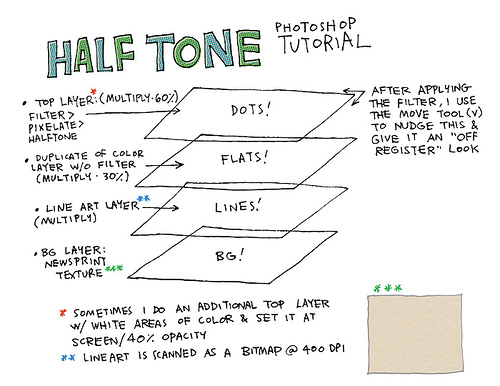
Of course I had to find out more about who was behind this little gem of simplicity and contacted the author, Adam Koford, for some background on himself. He was kind enough to send this in:
- My main site, www.adamkoford.com is becoming more of a repository for recent freelance work, while my flickr pool is my "toy box" where I post illustrations which are more experimental in nature or which are part of online group projects (like Illustration Friday or e-hobo). I don't worry as much about sticking to one style with the things I post to flickr. This kind of freedom allows me to use some of the filters and effects I might not normally have as much use for in a freelance project overseen by an art director.
 For instance, on this submission to the hobo project I played around with blending modes and opacity to achieve the hopefully realistic effect of these posters and chalk markings, which were both created in Photoshop.
Here I've used a piece of cardboard as a background texture to emphasize the transparentness of the dark areas while giving more opacity to the highlights on a separate layer. This is where having a training in traditional media helps, since this is a principal drummed into my head at art school.
Finally, this sample represents my usual style, where I rely heavily on a basic set up of two layers over a layer of flat color (or, in this case, grays). One layer above the flats is set to multiply in the blend mode and filled with 25% black. The top layer is set to normal and filled with white. The opacity is then set to 70%. From there, I used the flats layer to make selections and erase segments of the highlights and shadows on the other layers to achieve a somewhat painterly effect while still holding on to the linework.
Thanks Adam — and keep up the great work!
posted by Jennifer Apple | permalink | send comments
Photoshop Tip: Save Clicks When You Close
This is such a quick little tip that you might not think that it matters, but it saves a few seconds every time you close a document. If you close a number of documents a day (and my guess is, you do), it really starts to add up fast. When you close a document, Photoshop presents you with a dialog asking, "Save changes to the Adobe Photoshop document before closing?" You have three choices: (1) Don't Save, (2) Cancel, and (3) Save. Here's the shortcut: Press the letter D for Don't Save, press S for Save, and C for Cancel.
reprinted by permission and sponsored by the NAPP
posted by Jennifer Apple | permalink | send comments
SEE PREVIOUS POSTS FROM THE AUGUST 2006 BLOG...
Photoshop CS5 & Photoshop CS5 Extended - Best Deals From Adobe
 Adobe Photoshop CS5 delivers breakthrough capabilities to help you create images with impact. Refine your
images with reengineered photography tools for removing noise, adding grain, and creating high dynamic
range (HDR) images. Get precise results when making complex selections. Remove any image element and
see the space fill in almost magically. Paint with naturally textured brushstrokes and realistic color blends. Learn more about Photoshop CS5.
Adobe Photoshop CS5 delivers breakthrough capabilities to help you create images with impact. Refine your
images with reengineered photography tools for removing noise, adding grain, and creating high dynamic
range (HDR) images. Get precise results when making complex selections. Remove any image element and
see the space fill in almost magically. Paint with naturally textured brushstrokes and realistic color blends. Learn more about Photoshop CS5.
Adobe Photoshop CS5 Extended software helps you create the ultimate images
for print, the web, and video. Enjoy all the state-of-the-art editing, compositing,
and painting capabilities in industry-standard Photoshop CS5, and experience
fast performance thanks to cross-platform 64-bit support. Also create 3D extrusions
for logos, artwork, and motion graphics; edit 3D objects with advanced tools; and create and enhance motion-based content. Learn more about Photoshop CS5 Extended.
Find CS5 upgrade options and Creative Suite 5 deals at the Adobe Store. See CS5 pricing in UK currency at the Adobe UK Store. Visit the Adobe Special Offers page to find the latest deals. Save 80% on Adobe Student Editions. Try before you buy — download a free Photoshop CS5 trial.
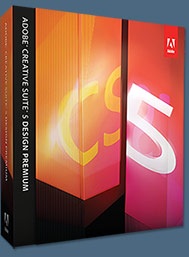 Adobe Creative Suite 5 Design Premium
Adobe Creative Suite 5 Design Premium software gives you fresh new creative tools, along
with the ability to deliver ideas faster in print and create interactive content without writing
code. Plus Design Premium integrates with Adobe CS Live online services to maximize
your design time by streamlining critical nondesign tasks.
Adobe Creative Suite 5 Design Premium combines Adobe InDesign CS5, Photoshop CS5 Extended, Illustrator CS5, Flash CS5 Professional, Dreamweaver CS5, Fireworks CS5, and Acrobat Pro with additional tools and services. Download a free CS5 Design Premium 30 day trial.
Photoshop CS5 Tutorials & CS5 Resources
See our Photoshop CS5 Resource Center for Free Photoshop CS5 Tutorials, and the Free Photoshop CS5 Trial Download. See our Photoshop CS4 Resource Center for Free Photoshop CS4 Tutorials.
Exclusive onOne Software 15% Instant Discount Coupon
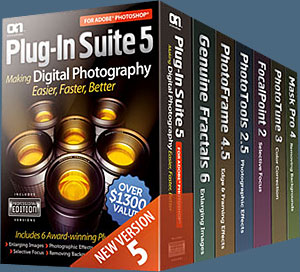 Enter our exclusive discount coupon code - PSSPPT06 - during the checkout process at onOne Software for an instant 15% discount on any onOne product. This includes Genuine Fractals and their amazing Photoshop Plug-In Suite.
OnOne’s new Plug-In Suite solves six of the most frequent problems photographers will encounter in Photoshop. This suite has been granted American Photos Magazine’s Editor’s Choice award for Top Image Editing Software. The Plugin Suite includes:
Genuine Fractals Pro is renowned by both photographers and printers for its finesse at increasing images to more than ten times their original size while maintaining the sharpness and detail you started with. Think of this as the industry standard for image resizing.
Mask Pro is used to remove the tough stuff — such as hair, smoke and glass — while retaining the fine detail. You choose what colors to keep, then paint away what you don’t need.
 PhotoTools Pro packs hundreds of high-calibre photographic effects into one user-friendly plug-in. It’s fast and easy to use. Gives your photos that pro quality look.
PhotoFrame Pro lets you enhance your pictures with hundreds of such design effects, or simply drop your image into a pre-fab layout in Photoshop, Lightroom or Aperture.
FocalPoint helps to control focus and minimize visual noise. Draw the eye to specific points in your images by using selective focus, depth-of-field and vignette effects.
PhotoTune lets you can compare images side-by-side and easily color correct and enhance them. PhotoTune optimizes the dynamic range, color and sharpness of your image without the need to know all the complicated controls in Photoshop like levels and curves.
Simply enter our exclusive discount coupon code - PSSPPT06 - during the checkout process at onOne Software for an instant 15% discount on any onOne product.
Nik Software 15% Instant Discount - Exclusive 15% Coupon
Enter our exclusive discount coupon code - NIKPSS - during the checkout process at Nik Software for an instant 15% discount on any Nik Software product. This exclusive discount coupon code can be applied to all the latest Nik Software Photoshop plugins, including Silver Efex Pro, Color Efex Pro, Viveza, Sharpener Pro, and Dfine.
Color Efex Pro
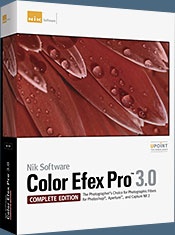 52 photographic filters with over 250 effects for professional quality images.
Completely Original. Completely Indispensable.
52 photographic filters with over 250 effects for professional quality images.
Completely Original. Completely Indispensable.
Nik Software Color Efex Pro filters are the leading photographic filters for digital photography. The award-winning Color Efex Pro filters are widely used by many of today's professional photographers around the world to save time and get professional level results. Whether you choose the Complete Edition, Select Edition, or Standard Edition, you’ll get traditional and stylizing filters that offer virtually endless possibilities to enhance and transform images quickly and easily.
Patented U Point technology provides the ultimate control to selectively apply enhancements without the need for any complicated masks, layers or selections. Control color, light and tonality in your images and create unique enhancements with professional results. With 52 filters and over 250 effects found in Color Efex Pro, you can perform high quality retouching, color correction, and endless creative enhancements to your photographs. Download a free Trial version.
Viveza
 The most powerful tool to selectively control color and light in photographic images without the need for complicated selections or layer masks.
Two of the most important factors in creating great photography are color and light. Mastering the art of selectively correcting or enhancing each of these is now possible for every photographer without the need for complicated masks or selections, or expert-level knowledge of Photoshop. Integrating award-winning U Point technology, Viveza is the most powerful and precise tool available to control light and color in photographic images.
U Point powered Color Control Points, placed directly on colors or objects in an image (such as sky, skin, grass, etc.), reveal easy-to-use controls that photographers can use to quickly adjust brightness, contrast or color in a fraction of the time needed by other tools. With Viveza you’ll spend more time shooting photographs and save hours of image editing. Download a free Trial version.
Silver Efex Pro
 Complete power and control to create professional quality black and white images in one convenient tool.
Silver Efex Pro from Nik Software is the most powerful tool for creating professional quality black and white images from your photographs. For the first time, all the advanced power and control required for professional results have been brought together in one convenient tool.
Featuring Nik Software’s patented U Point technology to selectively control the tonality and contrast of the image, Silver Efex Pro includes advanced imaging algorithms to protect against unwanted artifacts, a comprehensive collection of emulated black and white film types, a variable toning selector for adding traditional toning techniques, over 20 one-click preset styles, and a state-of-the-art grain reproduction engine that help produce the highest quality black and white images possible from your color images while providing more freedom to experiment. Download a free Trial version to use Silver Efex Pro.
Enter our exclusive discount coupon code - NIKPSS - during the checkout process at Nik Software for an instant 15% discount. This exclusive discount coupon code can be applied to all the latest Nik Software Photoshop plugins, including Silver Efex Pro, Color Efex Pro, Viveza, Sharpener Pro, and Dfine.
Exclusive 15% Discount On All Topaz Plugins - Use Coupon Code PHOTOSHOPSUPPORT - Includes Bundles And Upgrades
 Enter our exclusive discount coupon code PHOTOSHOPSUPPORT during the checkout process at Topaz Labs for an instant 15% discount on any Topaz product, including bundles and upgrades.
Topaz Labs Photoshop plug-ins are specifically designed to expand a photographer's creative toolbox by harnessing powerful image technology developments. Photographers everywhere are now taking advantage of the creative exposure effects, artistic simplification, unique edge manipulation, and top-of-the-line noise reduction offered in Topaz products. The Topaz Photoshop Plugins Bundle is a super powerful Photoshop plugins package that includes the following Topaz products:
Topaz Adjust
Deliver stunning and dynamic images with this uniquely powerful plug-in that features HDR-like abilities and enhances exposure, color and detail.
 Topaz Detail
A three-level detail adjustment plug-in that specializes in micro-contrast enhancements and sharpening with no artifacts.
Topaz ReMask
The fastest and most effective masking and extraction program with one-click mask refining.
Topaz DeNoise
Highest-quality noise reduction plug-in that removes the most noise and color noise while preserving the most image detail.
Topaz Simplify
Provides creative simplification, art effects, and line accentuation for easy one-of-a-kind art.
Topaz Clean
Take control of the detail depth of your images with extensive smoothing, texture control and edge enhancement tools.
Topaz DeJPEG
Drastically improves the quality of web images and other compressed photos.
Learn more about the Topaz Photoshop Plugins Bundle. Download a free trial version.
Photoshop Masking Plugin Fluid Mask - Exclusive Instant Discount
 The 4 1/2 out of 5 star review of Fluid Mask at MacWorld begins by saying that this "Photoshop plug-in takes the pain out of extracting backgrounds," and goes on to recommend the latest version, stating that "Fluid Mask is a very effective tool for separating objects from their backgrounds. It offers a variety of useful features for tackling almost any difficult image, from wispy hair to complex foliage. Online video tutorials and live training sessions help ease the learning curve."
Our friends at Vertus, the makers of Fluid Mask Photoshop Plugin, have set up a special exclusive discount for PhotoshopSupport.com. Go to our Fluid Mask page for a special, exclusive discount link.
Fluid Mask is designed for photographers, image editors, graphic designers and all those who take digital image editing seriously. In a streamlined interface and workflow, Fluid Mask instantly shows key edges in the image and provides comprehensive easy to use tools that work with difficult-to-see edges and tricky areas like trees & lattices. Fluid Mask will also preserve all-important edge information for a professional quality cut out. Go to our Fluid Mask page for more info.
lynda.com Online Training Library - View Free Video Clips
 Subscriptions to the lynda.com Online Training Library provide anytime access to tens of thousands of video tutorials covering Photoshop, Illustrator, Dreamweaver, web design, digital imaging, 3D, digital video, animation, and many other topics. View free video clips.
For less than a dollar a day, members have the opportunity to stay current and keep skills sharp, learn innovative and productive techniques, and gain confidence and marketability - all at their own pace. Premium subscriptions include instructors’ exercise files so that members can follow along with the exact examples onscreen. Customers learn at their own pace and may stop, rewind, and replay segments as often as necessary. View some free video clips (high resolution).
Did You Know You Could Create An Entire Website In Photoshop?
SiteGrinder Photoshop Plugin - Create Websites Instantly
 There often seems to be a strict division of labor within the world of web design and development. Creative professionals tend to stick to the Photoshop domain, while those well-versed in scripting are left to the task of implementing their work. Indeed, the two realms are quite different from each other, to which any of us even vaguely familiar with either can easily attest.
Essentially, Photoshop is a no-holds-barred design studio, offering the artist a seemingly endless array of creative options. On the other hand, HTML, CSS, Java and the like follow strict rules of engagement, requiring the developer to take any number of esoteric concerns into consideration in order to ensure that designs are properly displayed on the web.
Turn Photoshop Into A Complete Web Design Tool
SiteGrinder seeks to bridge this gap between design and development. Basically, SiteGrinder turns Photoshop into an easy-to-use and fully functional web design tool. With SiteGrinder, designers will now have the freedom to totally let their creativity loose and then, without skipping a beat, transfer their designs to the web. Bringing esthetic concerns together with more practical considerations, SiteGrinder is an amazingly powerful tool that would make a fantastic addition to any web designer's bag of tricks. Mac OS X and Windows versions of the SiteGrinder unlockable demo are available now via download.
Photoshop CS4 Essential Skills - By Mark Galer And Philip Andrews
 Brimming with beautiful pictures, Photoshop CS4 Essential Skills guides you through a project-based, progressive curriculum so that you can build all the essential skills to enhance photographs creatively and professionally with Photoshop CS4. If you are an aspiring professional or a student learning photography, digital imaging, or design graphics, you'll be amazed at the stunning results you can achieve. A DVD is included free.
The Essential Skills Photography Series from Focal Press uniquely offers a structured learning experience for photographers of all ages, with both the underlying theory and loads of invaluable 'how to' and real-life practice projects - all from the most talented photography practitioners/educators in the world.
Read 2 free sample chapters:
Skin Retouching Tips In Photoshop CS4
Transforming Smart Objects In Photoshop CS4
Find more Photoshop CS4 tutorials on our Photoshop CS4 Tutorials Page.
Read 2 free sample chapters from the Adobe Photoshop CS3 version:
 Adjusting Exposure in Adobe Camera Raw CS3
Photoshop CS3 Tutorial High Dynamic Range
Find More Adobe Photoshop Books at Amazon.com
Find all the latest bestselling Photoshop books at discount prices at Amazon.com.